
Install and update
- Pick the zip for your system: windows_x64, linux_x64, macos_arm64 (Apple Silicon) or macos_x64 (Intel Mac).
- Install: Edit › Preferences › Get Extensions, the menu at the top right, Install from Disk…, then choose the zip. No internet connection or admin rights needed.
- Update: uninstall the old version, restart Blender, install the new zip. Your layers and settings are kept.
Requirements: Blender 4.2 LTS to 5.2 on Windows x64, Linux x64 or macOS 11+ on Apple Silicon. Intel Macs work with Blender 4.2 to 4.5. The macOS builds pass automated tests but have not been fully tested on a real Mac yet.
Getting started
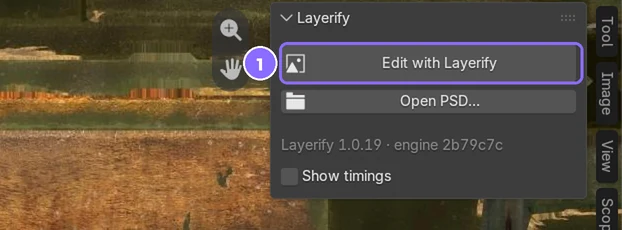
- Open an image in the Image Editor: a texture of your model, any image file, a generated or packed image, a UDIM set.
- Open the Sidebar (N) and its Layerify tab.
- Click Edit with Layerify. To start from a PSD on disk instead, click Open PSD…
Put a 3D View beside the Image Editor in Material Preview: your model updates as you work. To paint on the model itself, use Blender’s Texture Paint alongside Layerify: every stroke comes into a layer (see Painting on the model).
The first time
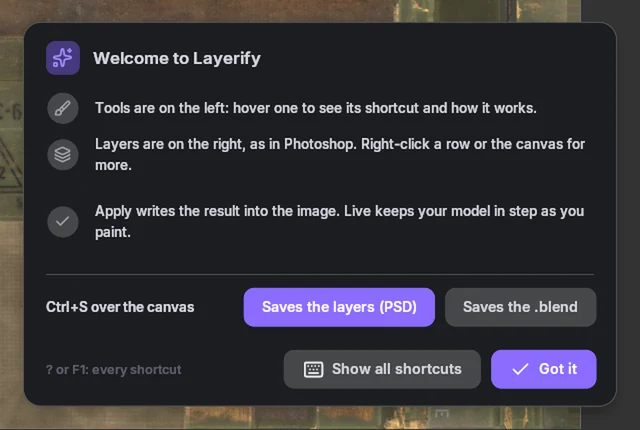
A welcome card shows three tips and asks what Ctrl+S should do over the canvas:
- Save the layers, as in Photoshop (Blender’s Ctrl+S still saves the .blend everywhere else), or
- Save the .blend, as in Blender: the layers then save with Alt+S.
You can change it later in the add-on’s Preferences, under Saving.
Cards you may see
- A PSD with the image’s name is beside it: edit the PSD’s layers (Save writes them back into it), or edit this image only. Asked once per image.
- The image changed outside Layerify since its layers were saved: keep both (the outside edit is added as a new layer on top), use your layers, or start from the image and set the old layers aside in a backup.
- Unsaved work survived a crash: restore it, or discard it.
The screen
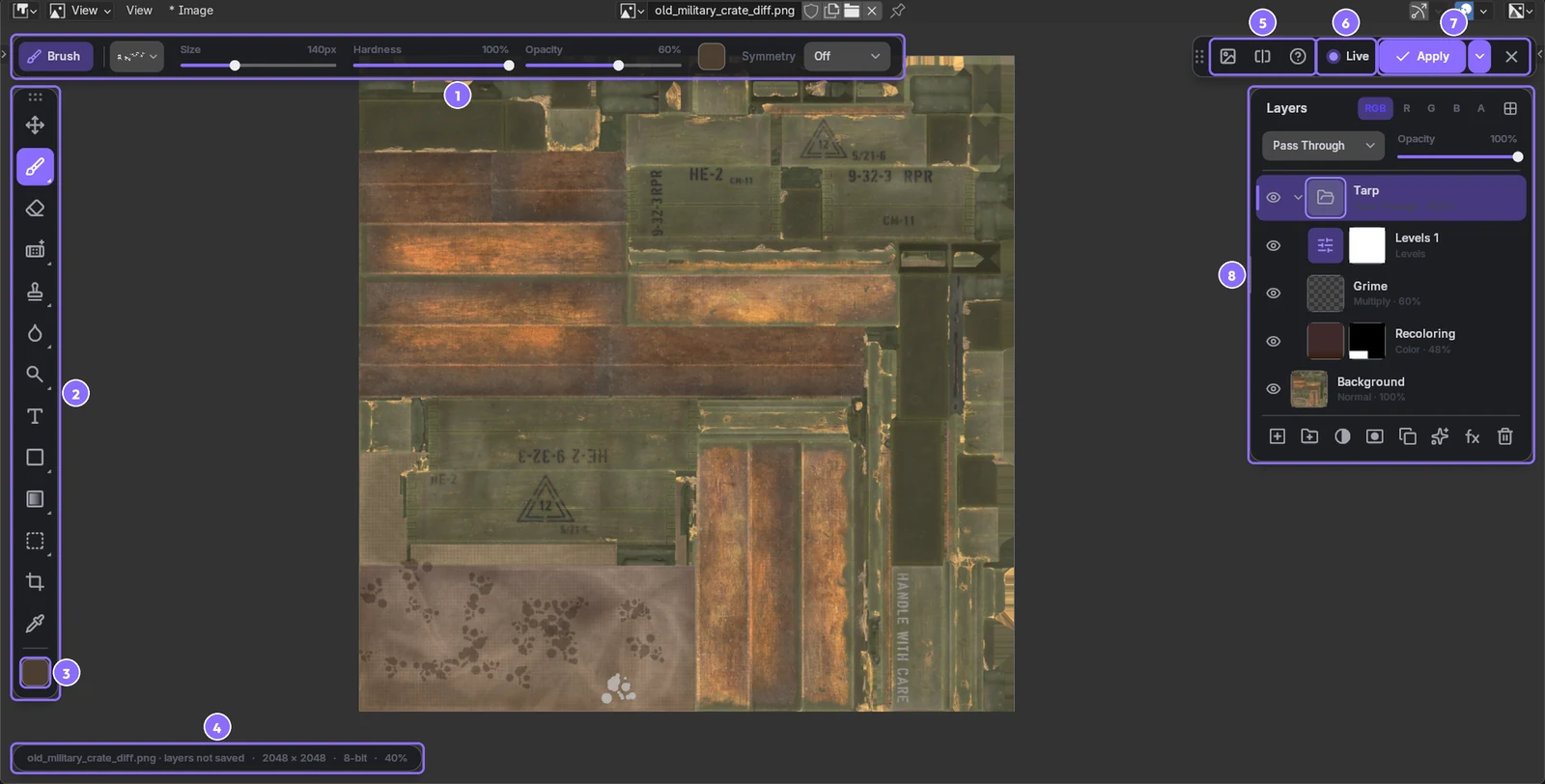
- Options bar: the active tool and its settings (size, hardness, opacity and more).
- Tool bar: hover a tool for its shortcut and how it works; the corner mark means more tools in a flyout.
- Colors: the foreground and background colors (X swaps them).
- Info pill: the layered file’s name (a dot while it has unsaved changes), the size, the bit depth, the zoom. Click it for the Image menu.
- Image menu, Before / after, help (?): hold Before / after (or \) to see the image as it was.
- Live: on, the image in Blender (and your model) follows every edit; off, the model waits for Apply.
- Apply (the arrow sets where it writes) and Close (×).
- Layers panel, with the channel buttons RGB, R, G, B and A at its top.
Sliders everywhere: drag them, or double-click the value to type a number.
Layers and masks
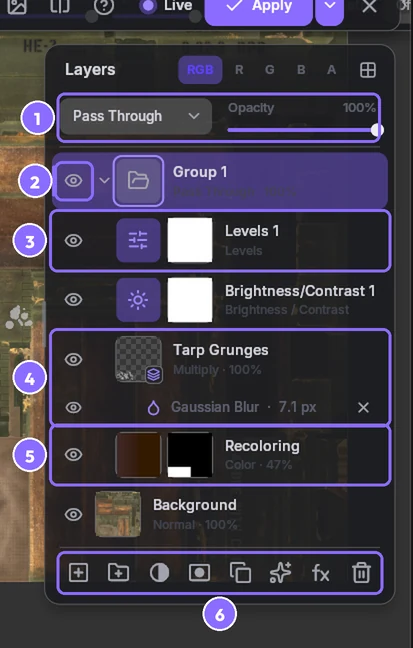
- Blend mode and opacity of the selected layer.
- Eye: show or hide. A group’s arrow opens it (Alt+click: all groups).
- Adjustment layer, with its mask (white shows, black hides).
- Smart object and its smart filter: click the filter to change it, its eye to hide it.
- Fill layer, with a mask made from a selection.
- Footer: new layer, group, adjustment or fill, mask, duplicate, filter, layer style (fx), delete.
Layers
- Kinds: pixel, adjustment, fill (color, gradient, pattern), text, shape, smart object, group.
- 27 blend modes (hover a mode in the menu to see it on the image; close the menu without picking and nothing changes), opacity and fill, clipping masks (Ctrl+Alt+G).
- Click, Ctrl+click or Shift+click to select; drag a row to reorder (onto a group: into it).
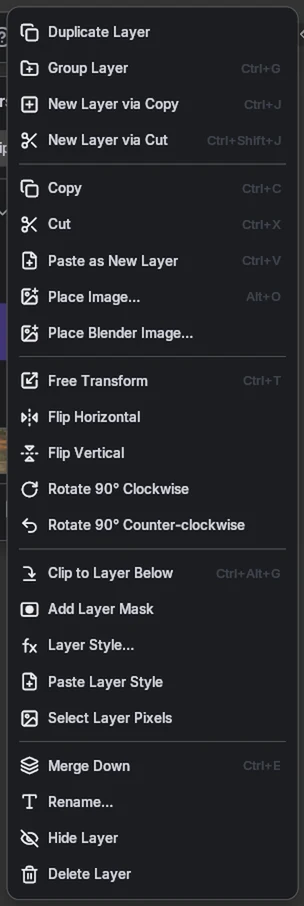
- Double-click to rename; right-click for the layer menu (merge, rasterize, clip and more).
- Ctrl+G group, Ctrl+E merge down, Ctrl+J layer via copy.
- Drop image files on the canvas, or press Alt+O, to place them as layers.
Masks
- With a selection, a new mask (or a new adjustment or fill) takes its shape.
- Click the mask thumbnail to paint on it: black hides, white shows.
- Alt+click: see the mask itself. Shift+click: turn it off or on.
- Ctrl+click: load it as a selection.
- Drag a mask to another layer (Alt: copy it).
- Right-click the canvas: grow, shrink or feather the mask’s selection.
Tools
The tool bar’s tools, with Photoshop’s keys. Pressing a key again picks the next tool of its group.
| Key | Tool | What it does |
|---|---|---|
| V | Move | Drag the layer, or the selected pixels. Arrows nudge 1 px (Shift: 10). |
| B | Brush, Pencil | Paint (Pencil: hard-edged). Alt+click picks a color. |
| E | Eraser | Erase to transparency. |
| J | Spot Healing, Healing Brush | Paint a flaw away with what’s around it. Healing Brush: Alt+click where to copy from. |
| S | Clone Stamp | Alt+click a source, then paint a copy of it. |
| Y | History Brush | Paint back the image as it was when you opened it. |
| R | Blur, Sharpen, Smudge | Soften, crisp up or push paint where you brush. |
| O | Dodge, Burn, Sponge | Lighten, darken, or (de)saturate where you brush. |
| G | Gradient, Paint Bucket | Drag a gradient (Shift: 45° steps); fill similar colors with a click. |
| M | Rectangle, Ellipse Select | Select an area (see Selections). |
| L | Lasso | Draw a selection freehand. |
| W | Magic Wand, Select by Object, Select UV Island | Select similar colors with a click; an object of a render, by its Cryptomatte (Editing renders); a UV island, on the image or on the model in a 3D view (Texture tools). |
| C | Crop | Drag the box’s edges, Enter crops, Esc resets. |
| I | Eyedropper | Pick a color from the image. |
| T | Type | Click to type, drag for a text box (see Text and shapes). |
| U | Rectangle, Ellipse, Polygon, Line, Custom Shape | Draw a shape layer (see Text and shapes). |
Brushes
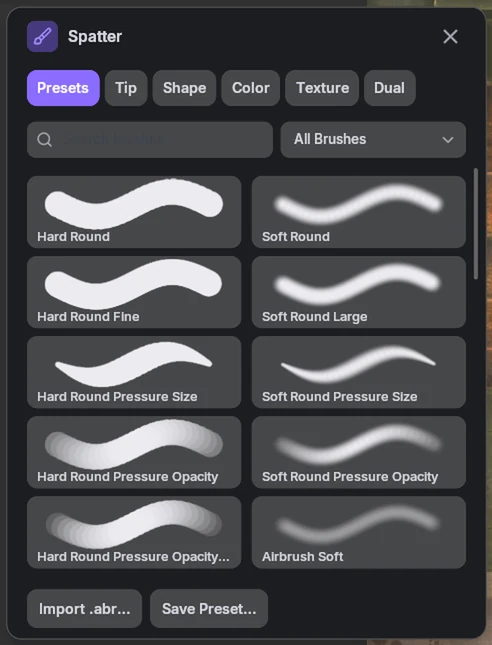
The Brush button (left of Size in the options bar) opens the Brush panel: presets with a preview of their stroke, a search field, and the tip, shape and color settings.
- Import .abr: Photoshop brush files join a library you can use in every project.
- [ and ] change the size; Alt+right-drag: size left and right, hardness up and down.
- Pen pressure for size, opacity and flow.
- Symmetry (options bar), for every brush tool: mirrored about the centre, Radial (Segments copies; Mirror: a mandala), or Custom: drag your own mirror lines and click turning points on the image (Alt+click removes one; Enter: done).
- While painting with the Brush or Pencil: Ctrl erases, Shift smooths, Ctrl+Shift smudges (set in the add-on preferences).
- Shape and color dynamics, texture and dual brushes, as in Photoshop.
Selections and transform
Selecting
- Shift+drag adds, Alt+drag subtracts, Shift+Alt keeps the overlap.
- Ctrl+A all, Ctrl+D none, Ctrl+Shift+I inverse.
- Right-click: grow, shrink, feather, smooth, border.
- Color Range… (right-click, or the options bar’s Modify menu): select a color across the image; with a selection, only inside it.
- Ctrl+click a thumbnail: select that layer’s pixels (Ctrl+Shift adds, Ctrl+Alt subtracts, Ctrl+Shift+Alt intersects); Ctrl+click R, G, B or A: by a channel.
- Delete clears the selected pixels; Ctrl+J copies them to a new layer.
- Ctrl+C, Ctrl+X and Ctrl+V work with images copied in other programs too; Ctrl+Shift+C: Copy Merged (everything shown).
Free Transform (Ctrl+T)
- Works on the layer, the selection, or the selected layers.
- Drag a corner to scale (Shift: freely, Alt: from the centre), drag outside to rotate.
- Ctrl+drag a corner: distort, for perspective.
- Enter or double-click applies, Esc cancels.
- Edges and centres snap to the image’s and other layers’ (Ctrl: freely).
Adjustments, filters and layer styles
Adjustment and fill layers
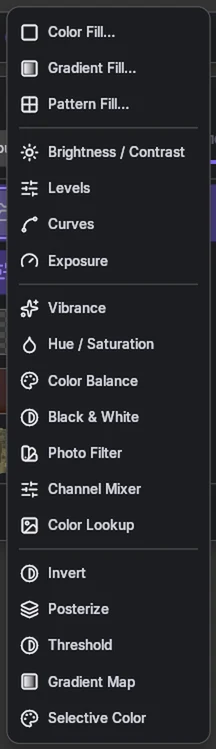
The half-circle button: Color, Gradient and Pattern Fill; Brightness / Contrast, Levels, Curves, Exposure, Vibrance, Hue / Saturation, Color Balance, Black & White, Photo Filter, Channel Mixer, Color Lookup, Invert, Posterize, Threshold, Gradient Map, Selective Color. Each comes with a mask and stays editable: click the layer for its settings.
As in Photoshop:
- Hue / Saturation edits Master or one color range (Reds to Magentas): drag the triangles, bars or middle on the color bars; or use the eyedroppers (click a color in the image, + adds colors, - leaves them out); or the hand: drag on a color in the image for its saturation, Ctrl for its hue.
- Black & White has Photoshop’s presets, Load (.blw files), Auto, the same hand, and Colorize.
- Levels works on RGB or one channel, over a histogram of the image below it.
- Color Lookup loads your own .cube and .3dl LUTs.
- Gradient Map stops are edited on its bar: click to add, drag to move, drag down to remove.
- Brightness / Contrast has Use Legacy.
Filters
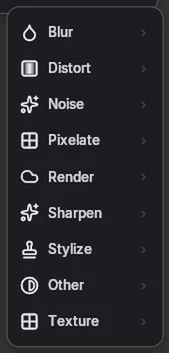
The sparkle button: Blur, Distort, Noise, Pixelate, Render, Sharpen, Stylize, Other and Texture (Make Tileable, Height to Normal, Normalize Normals, Flip Green). Tick Editable later (smart filter) and the layer becomes a smart object: the filter stays in its list, to change, hide, mask or remove later.
Layer styles (fx)
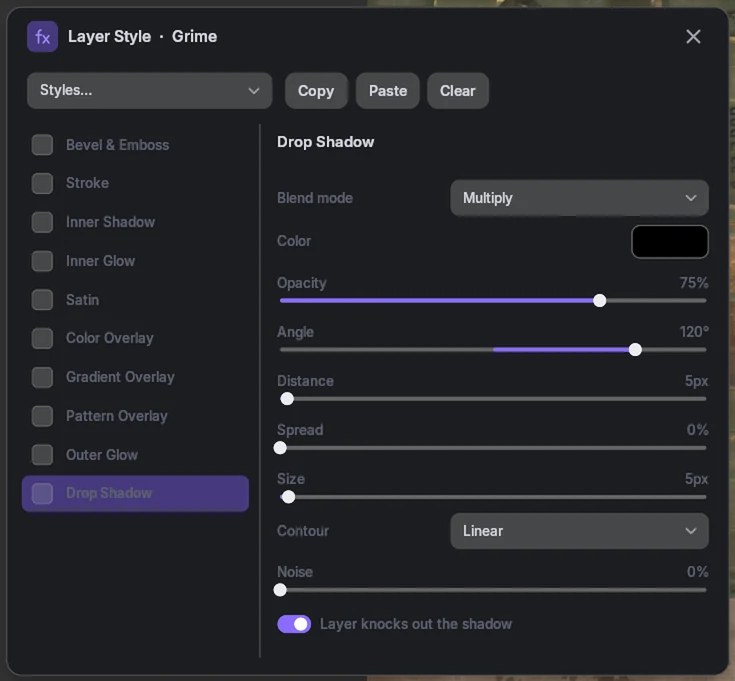
Bevel & Emboss, Stroke, Inner Shadow, Inner Glow, Satin, Color, Gradient and Pattern Overlay, Outer Glow, Drop Shadow. Click an effect for its settings, live; its box turns it on and off. Styles has presets, and Copy / Paste a style between layers. Right-click a layer: Copy, Paste or Clear Layer Style.
Text and shapes
Text (T)
- Click to type on a line, drag for a box the text wraps in.
- Click text to edit it; Esc or Ctrl+Enter: done.
- Font menu: type a name to find a font, each one previewed.
- Font, style, size and color change the selected letters.
- Warp: Arc, Flag, Wave and more; it stays editable.
- Any language; the Type… button for Chinese, Japanese and Korean input.
Shapes (U)
- Rectangle, Ellipse, Polygon (star), Line, Custom Shape.
- Drag; Shift: square, circle, 45°; Alt: from the centre.
- Fill, stroke, corner radius and sides in the options bar.
- 34 custom shapes: hearts, stars, arrows, bubbles, leaves and more.
- Right-click: Rasterize Shape to paint on it.
- Text and shapes are saved as text and shapes in the PSD.
Saving and applying
Two different things: saving keeps your layers, in a PSD; Apply puts the flattened result into the image your material uses.
Saving the layers
- Save Ctrl+S, Save As Ctrl+Shift+S, Save a Copy Ctrl+Alt+S over the canvas (Alt+S and Shift+Alt+S if Ctrl+S saves the .blend), or the Image menu.
- The first save asks where: by default beside the image, as
<image name>.psd. - A .psd image edits its own layers and saves back into its file.
- Image › Revert: back to the PSD as last saved.
- A PSD saved by another program meanwhile: Reload, or Keep mine.
Applying the result
- Apply in Blender only: the image in Blender (save it with Image › Save, or Blender asks on quit).
- Apply and save image file: overwrite its file on disk (no file: packed instead).
- Apply and pack into .blend.
- Choose with the arrow beside Apply, or in the Sidebar.
- After Apply it is an ordinary image: the .blend renders the same without Layerify.
Painting on the model (Texture Paint)
- Paint on the model with Blender’s Texture Paint while Layerify is open: each stroke comes into a Texture Paint layer at the top when it ends.
- A plain color brush keeps its soft edges (the layer can be recolored, masked, moved); textured and smear brushes come in as the colors they left.
- Ctrl+Z and Ctrl+Shift+Z, in Layerify or in the 3D view, undo and redo a stroke (the model follows); Live and Apply never paint over a stroke.
- Painting add-ons that paint in Texture Paint mode come in the same way.
- UDIM images: strokes painted on a UDIM model don’t come into Layerify (Blender’s Python reads only the first tile). Layerify says so, and applying or opening a tile asks first if the UDIM image has paint that isn’t saved: save it, then go on.
- More layers: right-click a layer, New Texture Paint Layer (an empty layer above the selected one; the next strokes go there) or Texture Paint Goes Here (any pixel layer). The layer strokes go into has a brush badge on its row.
- Painted while Layerify was closed: open it again and choose Keep both: only what changed comes in, as a layer.
Nothing is lost
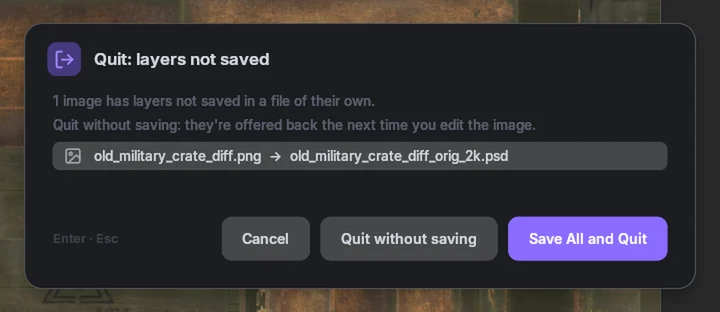
Layers not saved yet aren’t dropped silently. Saving the .blend, Layerify asks: Save All (each beside its image), Choose where…, or Not now. Quitting (Ctrl+Q), it lists them first.
Close (×) saves the layers to their PSD first.
Crash? Unsaved layer work is copied in the background every 2 minutes (Preferences); the next time you edit the image, Layerify offers it back.
Texture tools
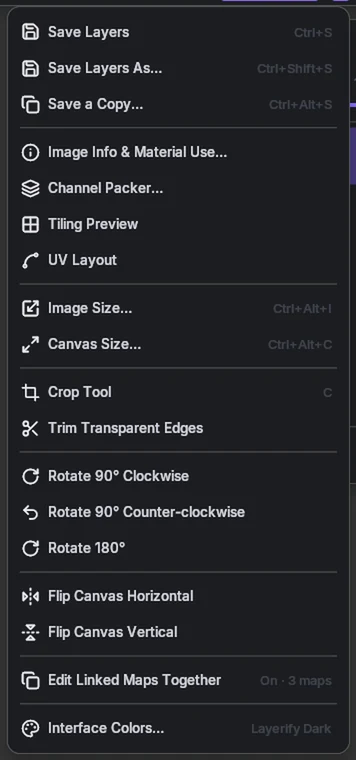
In the Image menu (top bar, or click the info pill):
- Tiling Preview: the image repeated around itself; paint across the seams. Filters › Texture › Make Tileable blends them in one step.
- Edit Linked Maps Together (on by default): crop, resize, turn or flip the color map and the material’s normal, roughness and other maps get the same change.
- UDIM: edit one tile, or All Tiles side by side; Apply writes the changed ones.
- Image Size (Ctrl+Alt+I): width and height in pixels or percent, linked or not, the resampling, texture sizes 512 to 8K and the nearest power of two in one click. Canvas Size (Ctrl+Alt+C): the new size, or pixels to add or take away, the anchor, and the new space’s color. Rotate, flip.
UV Layout
- The UV edges of the meshes using the image, drawn over it. A strip under the canvas sets its opacity and line color.
- Display menu: shade the islands, show outlines only, or check overlaps (red) and flipped islands (orange).
- Texture menu: make the wireframe layer (line width 1 to 8 px), an island ID map layer (each island one color, for the Magic Wand), or pad the active layer (UV padding: the colors run past the islands’ edges, 4 to 64 px or all the way, so mipmaps never show seams).
- Cursor on Model & Texture (Image menu) marks the point under the mouse on the texture on the model in the 3D view, and the point under the mouse on the model on the texture.
- Select UV Island (with the Magic Wand, W) selects the island clicked, on the image or on the model in a 3D view (Object Mode). The island under the mouse lights up on both; the tool’s Show on Model and Pick on Model switch this off. Shift adds, Alt subtracts; Expand grows it past the edges for paint to bleed over seams. Right-click, All UV Islands selects every one.
Channels
RGB, R, G, B and A at the top of the Layers panel show one channel as grey; painting, fills and filters then change only it (Ctrl+2 to Ctrl+6). Float images (EXR, HDR) are edited in float; 8K textures work.
Channel Packer
Image › Channel Packer, four tabs:
- Pack: roughness, metallic, AO and more into one image’s R, G, B and A. Presets for glTF / Unreal (ORM), Unity (mask map) and more; each row a map, a constant or a channel. Click a thumbnail to remap it (Low, High, Gamma); Ctrl+V over a row pastes a map.
- Unpack: a packed image back into separate maps.
- Convert: Spec/Gloss to Metal/Rough and back; UDIM sets tile by tile.
- Export: your materials’ texture sets for Unreal, Unity, Godot, glTF or O3DE, with their names and normal-map conventions, and UV padding if you want it (each map’s colors run 4 to 32 px past its UV islands, or fill the space between them). Also from the command line, for pipelines.
Editing renders
- Edit Render: render (F12), then Edit Render in the Render window’s header (or Sidebar › Layerify). The render opens as a new image, “<scene> render”, exactly as the Render window shows it (view transform, Look, exposure), in 16 bits. Its one layer, Render, is a smart object holding the render.
- Camera Raw Filter (the Filters menu, at the top): Basic, Presence, Curve, Mixer, Grading, Detail and Effects tabs. Each tab’s eye turns its settings off to compare, its arrow resets it; a changed slider shows a reset arrow (or double-click its track). In the title row, Before (the eye) shows the layer without the filter and Reset (the arrow) starts over. On the Render layer it’s a smart filter: click it in the layer list to change it later.
- Retouching: on a new layer above Render (Clone and Heal read all layers in a render edit). Rasterizing Render asks first: Update from Render needs it as a smart object.
- Update from Render: change the scene and render again. A card in the Render window offers Update (the new render swapped in under every filter and layer; Ctrl+Z undoes it) and Open Edit; turn on Update automatically and every render updates the edit at once. In the edit, the Render layer’s button shows a dot when a newer render is in: click it to update, or without one, to Render & Update in one go. A render of another size asks to scale it to fit.
- Export (Image › Export…, or the sidebar): PNG (8 or 16-bit), JPEG (quality, 4:2:0 or 4:4:4), WebP (lossless, or a quality), TIFF (8, 16 or 32-bit float, LZW / ZIP / PackBits, BigTIFF), OpenEXR (half or float; linear values), the color profile and metadata. 32-bit TIFF and EXR hold linear values, as Blender renders them (loading a 32-bit TIFF back into Blender: set its Color Space to Linear). The file’s size shows before you write it. Export uses the image as shown; the layers stay as they are.
- Render passes and Cryptomatte: every pass the view layer has on is kept with the edit (about 40 MB at 1080p with all of them), and again with each update. Select by Object (W, in the Magic Wand’s group): click an object of the render to select it, soft at its edges; Shift adds, Alt takes away; Pick chooses Object, Material or Asset. Image › Render Passes: every pass as a layer or a selection. Light passes go through your view transform, Look and exposure, so they match the render; data passes (depth, mist, normal, position, indexes, AO, shadow, AOVs) are mapped to 0 to 1, depth with near as white. The Cryptomatte tab lists what’s in the render by name. The Next Render tab: check the passes the next render should have, then Render & Update.
- Masks that follow the render: a mask made from a Cryptomatte selection is made again by Update from Render, so it stays on its object when the object moves. Paint on it and it’s yours: updates leave it alone.
- Stills only: for animations, use Blender’s compositor.
Make it yours
- Tools: drag a tool button to reorder the tool bar; right-click it for Horizontal Tool Bar (along the top or bottom).
- Panels: drag a panel’s title or a bar’s grip to move it, its side edge to resize it; double-click to put it back. Image › Reset Panel Layout resets everything.
- Keyboard shortcuts: press ? or F1, then Customize (or Image › Keyboard Shortcuts…): click a key to change it, + to add one, × to remove it. Every tool and menu command can have a key. A key already in use asks before it moves; Reset All puts Layerify’s back.
- Colors: Image › Interface Colors (or the welcome card): Layerify Dark or Light, Studio Grey or Charcoal, Match Blender (your theme’s colors) or High Contrast; hover one to see it. Your own accent color, and the panels’ opacity.
- Preferences (Edit › Preferences › Add-ons › Layerify): autosave interval, undo steps (200) and undo memory (8 GB), what Ctrl+S does, the theme.
Shortcuts
The ones you’ll use most (Cmd instead of Ctrl on a Mac). Press ? or F1 for all of them, searchable; its Customize sets your own.
| Keys | Does |
|---|---|
| Ctrl+Z / Ctrl+Shift+Z | Undo / redo |
| Ctrl+S / Ctrl+Shift+S | Save / save as |
| Ctrl+A / Ctrl+D | Select all / deselect |
| Ctrl+Shift+I | Select inverse |
| [ / ] | Brush smaller / larger |
| X | Swap colors |
| Hold \ | Before / after |
| Wheel / middle-drag | Zoom / pan |
| Ctrl+T | Free Transform |
| Ctrl+J | Layer via copy |
| Ctrl+G | Group |
| Ctrl+E | Merge down |
| Ctrl+Alt+G | Clipping mask |
| Alt+O | Place an image |
| Ctrl+Alt+I / Ctrl+Alt+C | Image size / canvas size |
| ? / F1 | All shortcuts |
Troubleshooting and support
| If… | Then |
|---|---|
| The Sidebar says “Engine unavailable for this platform” | The zip is for another system (or an Intel Mac runs Blender 5). Install the zip for your system and Blender version. |
| Edit with Layerify is greyed out | The Image Editor shows no image, or that image is already being edited. |
| The model doesn’t change as I paint | Turn Live on (top bar), and check the material uses this image; the 3D View must be in Material Preview or Rendered. |
| The image file didn’t change | Apply in Blender only doesn’t write the file: save the image (Image › Save), or switch Apply to “Apply and save image file”. |
| Ctrl+S saved the .blend instead of the layers (or the other way round) | Preferences › Saving: what Ctrl+S does over the canvas. |
| Undo goes back fewer steps on a huge image | Raise Undo memory in Preferences (the oldest steps go first when it’s full). |
| Panels are off-screen or in the way | Image › Reset Panel Layout. |
Still stuck, found a bug, or want a feature?
Press ? in Layerify and click Copy Support Info at the top of the sheet, then open a ticket and paste it with what you did and what happened. Replies come within 1 to 2 business days. For quick questions, message Peakz on Discord (peakz9155).
Adobe, Photoshop and Camera Raw are trademarks of Adobe Inc. Layerify is not affiliated with or endorsed by Adobe; their names are used only to describe compatibility and familiar ways of working.